 Giano Care
Two-factor sign-in
Protect your account with a code from your phone, and what to do if you lose it.
With two-factor sign-in, Giano Care asks for a 6-digit code from an app on your phone after your password. Even if someone learns your password, they can’t sign in without your phone. Because requests hold personal and health information, we recommend it to everyone.
Turn it on
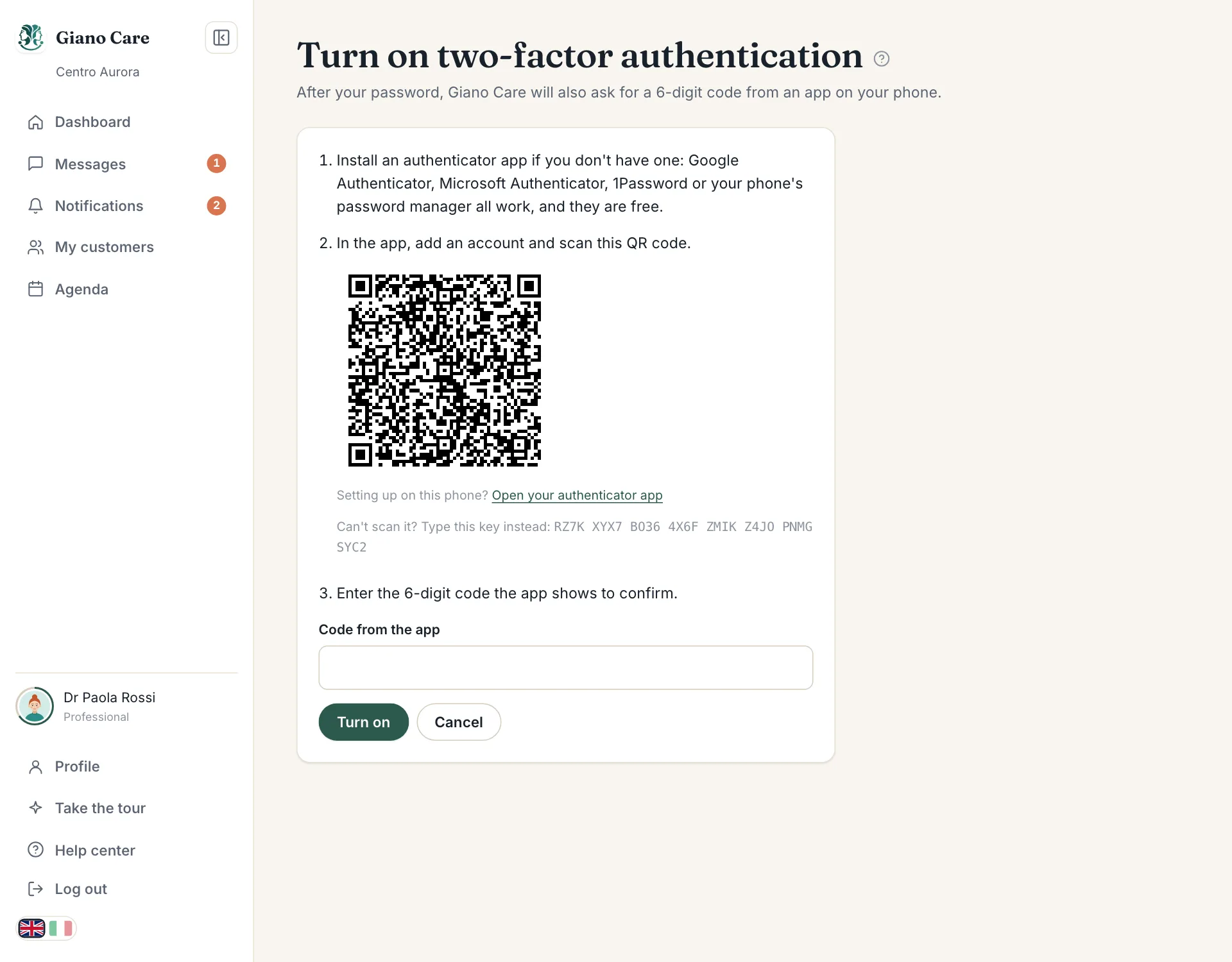
- Open your profile and, under Two-factor authentication, choose Turn on two-factor.
- Install an authenticator app if you don’t have one: Google Authenticator, Microsoft Authenticator, 1Password or your phone’s password manager all work, and they are free.
- In the app, add an account and scan the QR code. Can’t scan it? Type the key shown below it instead. Setting up on the same phone? Use Open your authenticator app.
- Enter the 6-digit code the app shows and press Turn on.
Save your recovery codes
Right after, Giano Care shows your recovery codes. Each one lets you sign in once if you don’t have your phone. Keep them somewhere safe, like a password manager or a printed sheet: they are shown only once. Press I saved them when you are done.
Signing in
After your password, enter the current code from the app. No phone with you? Enter one of your recovery codes instead.
New codes or turning it off
From your profile, enter a current app code (or a recovery code) to Make new recovery codes or Turn off two-factor. The profile also tells you how many recovery codes you have left.
Lost your phone and your codes?
Ask an owner of your organization: from Team, they open your page and choose Reset two-factor. You can then sign in with your password alone and set it up again on your new phone. You get an email when this happens.
Changing phone? Before you reset the old one, add Giano Care to the authenticator app on the new phone, or move your accounts with the app’s own transfer feature.