 Giano Care
Team
Invite colleagues, change their role, disable or remove them, and keep an eye on your seats.
For owners
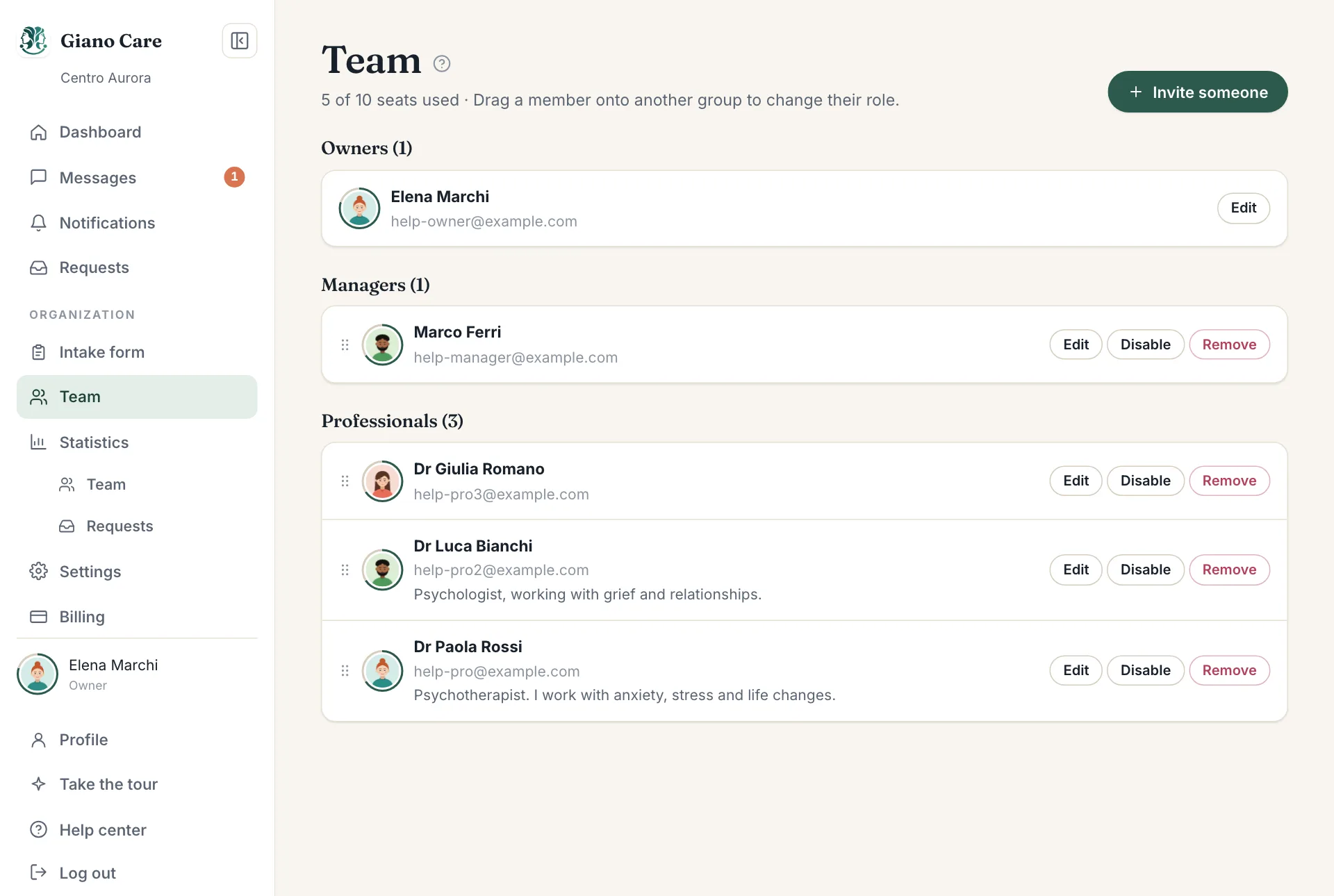
Team lists everyone in your organization, grouped by role, with how many seats you are using.
Invite someone
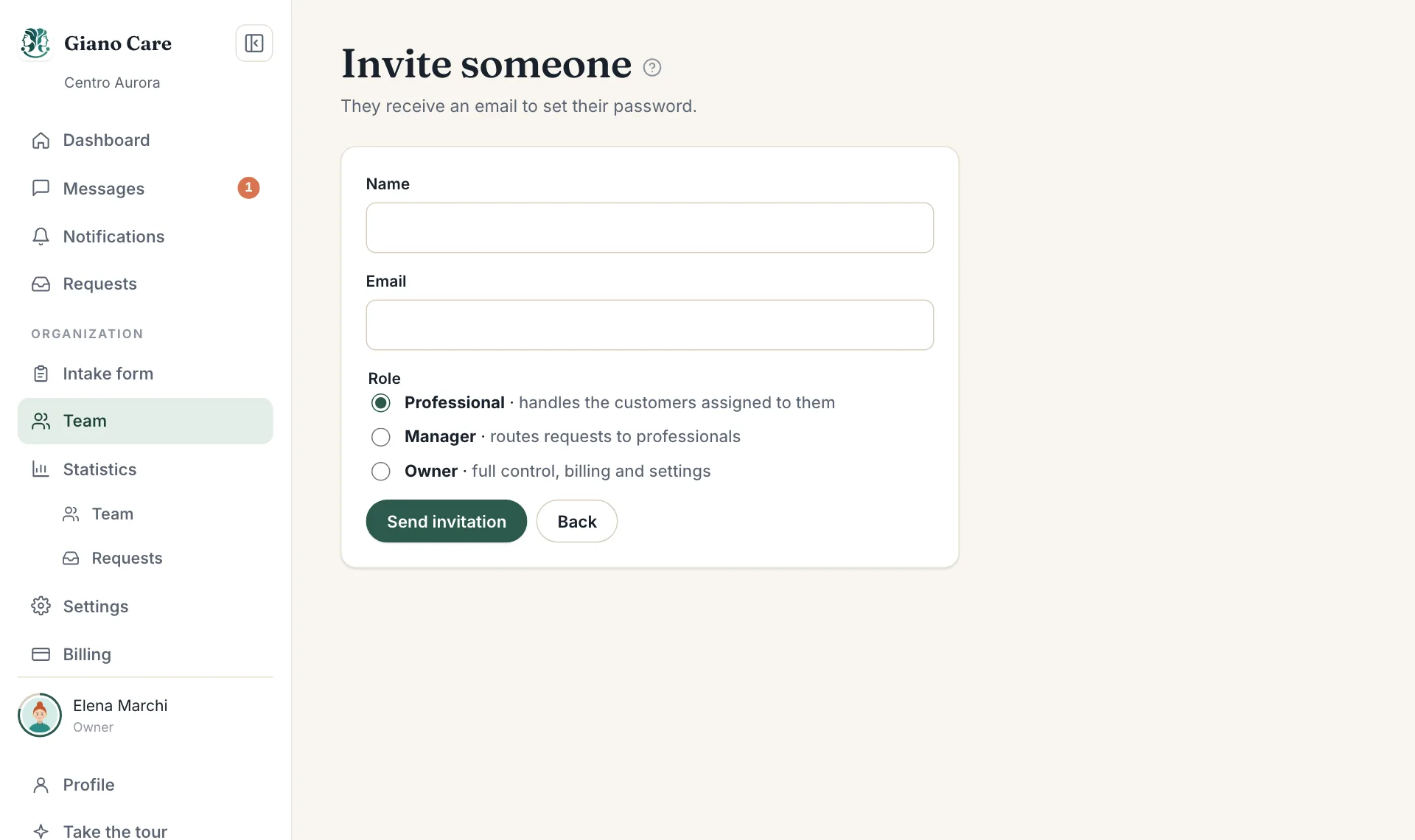
- Choose Invite someone.
- Enter their Name and Email.
- Choose a Role: owner (full control, billing and settings), manager (routes requests to professionals) or professional (handles the customers assigned to them).
- Press Send invitation.
They receive an email to set their password. If they already use Giano Care with another organization, they simply find yours by clicking their organization’s name at the top of the side menu.
Change a role
Drag a member’s card onto another group, or open Edit and choose a new Role. The organization always needs at least one owner.
If you remove yourself as owner, Giano Care asks you to confirm: you lose access to roles, members, billing and settings, and only another owner can give the role back.
Disable or remove someone
- Disable someone who should stop receiving new requests, for example during a long leave. They keep access and their current requests, but managers can’t assign them new ones. They stay in the list, greyed out, and in the statistics. Enable brings them back.
- Remove someone who leaves the organization. They lose access at once. Their past work stays in the history and statistics, under Removed.
Owners can’t be disabled: change their role first.
Seats
Each active member uses one seat, disabled members included. The header shows “n of limit seats used”. When all seats are used, you can’t invite anyone else until you add seats in Billing or remove someone.
Reset two-factor sign-in
If a member lost their phone and their recovery codes, open their Edit page and choose Reset two-factor. They can then sign in with their password alone and set it up again; they receive an email about it. See Two-factor sign-in.
Profile pictures and bios
From a member’s Edit page you can also add their picture and a short bio, visible to the team.