 Giano Care
The confirmation popup
Show your rules or disclaimers before the form is sent, with checkboxes people must tick.
For owners
Some services need people to read something before asking for help: that the service is not an emergency line, how calls work, or a privacy notice. The confirmation popup shows those texts when someone presses Send request, and the request goes out only once every box is ticked.
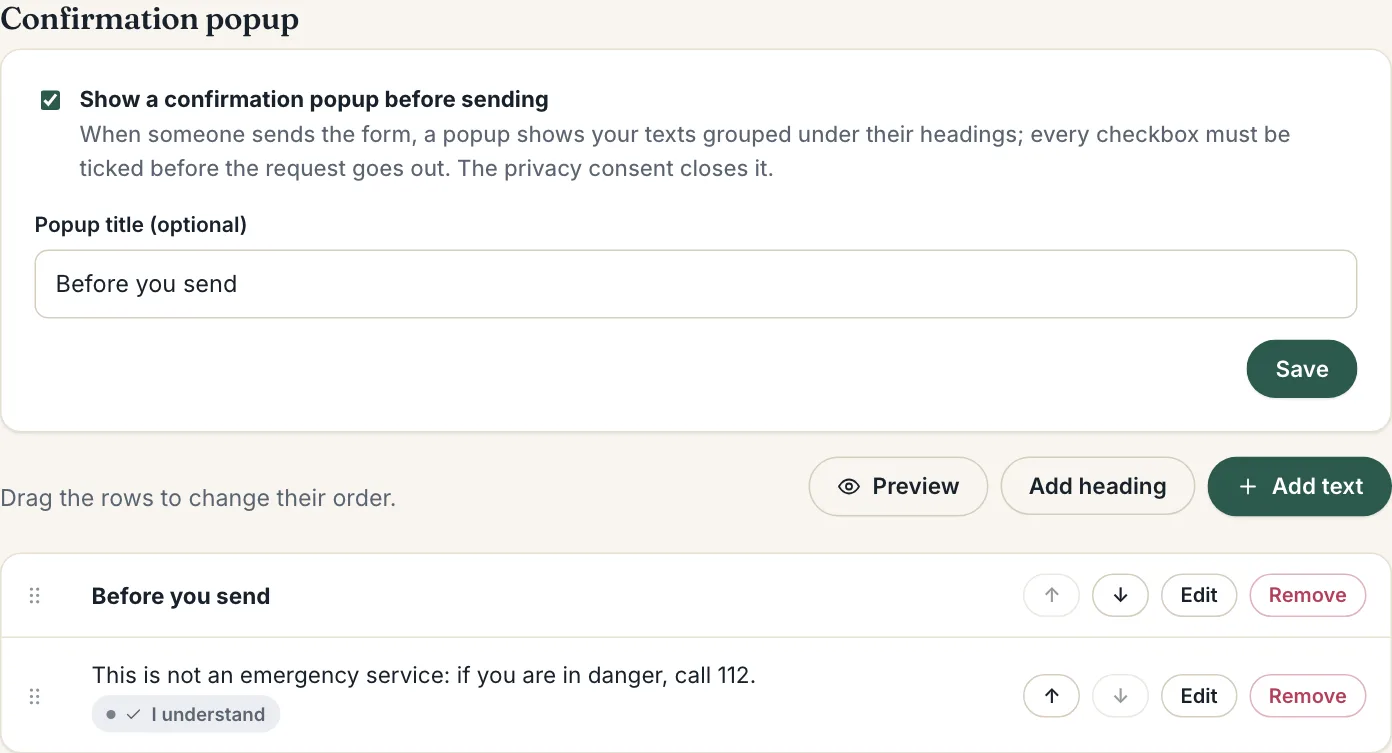
Turn it on
- Open Intake form and scroll to Confirmation popup.
- Tick Show a confirmation popup before sending.
- Optionally give it a Popup title, then press Save.
Until you add at least one entry, the form sends straight away.
Add headings and texts
- Add heading starts a group: the texts after it, up to the next heading, sit under it.
- Add text adds a block of text. Line breaks are kept, so a numbered list of rules can share one checkbox.
For a text, tick Ask for a checkbox to make people confirm it, and optionally write the Checkbox label, such as “I understand” or “I agree”.
Link your privacy policy
Write {privacy} in a text for a link to the privacy policy set in Settings, or {privacy: Privacy Policy} to choose the link’s words.
Order and preview
Drag the rows to change their order. Press Preview to see the popup exactly as people will, without sending anything.
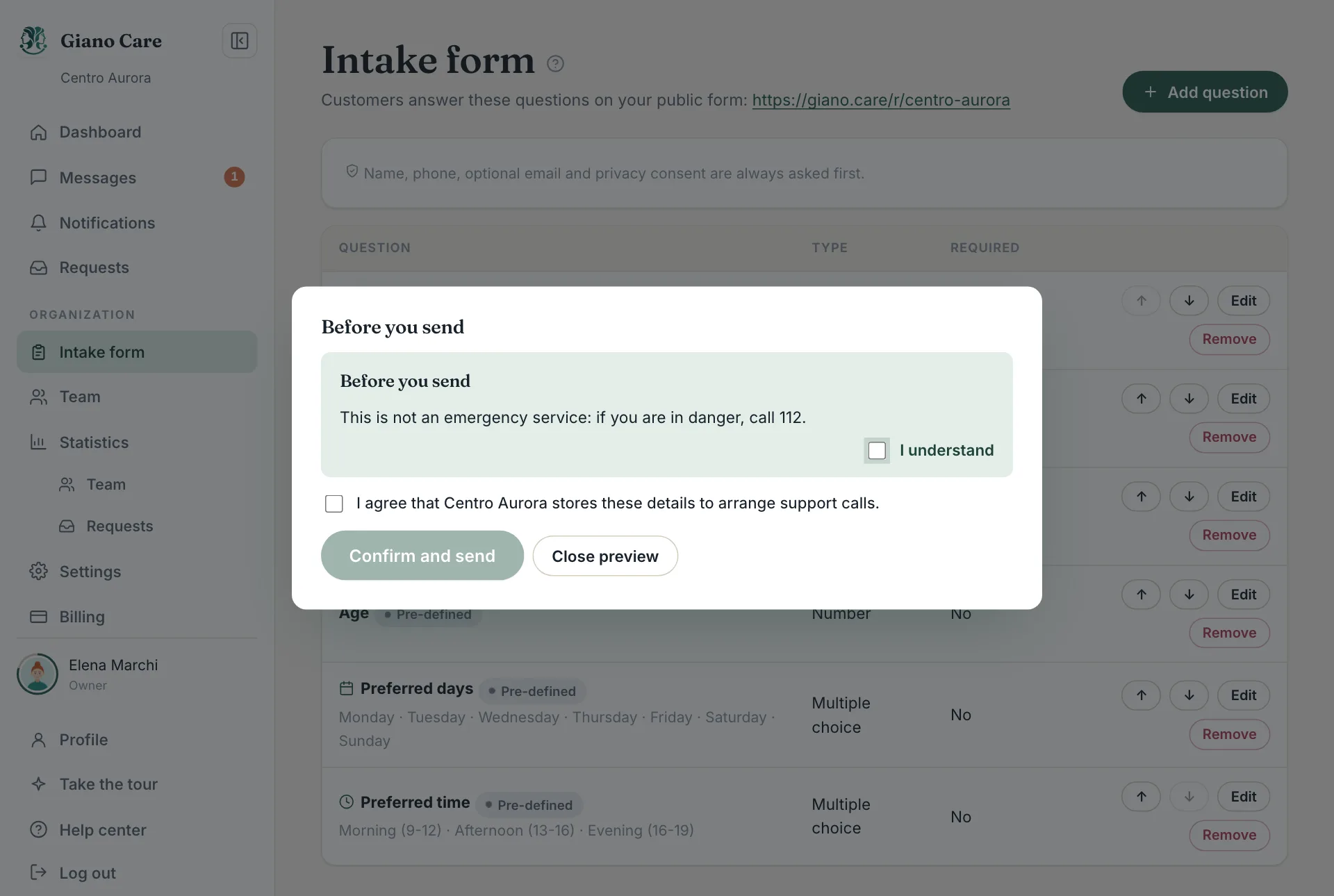
The privacy consent always closes the popup, after your texts.