 Giano Care
Notifications
The bell, emails, phone notifications and WhatsApp: how Giano Care tells you something needs you.
Whatever you choose, everything always appears in Giano Care when you sign in. On top of that, you decide how else you want to hear about it.
The bell
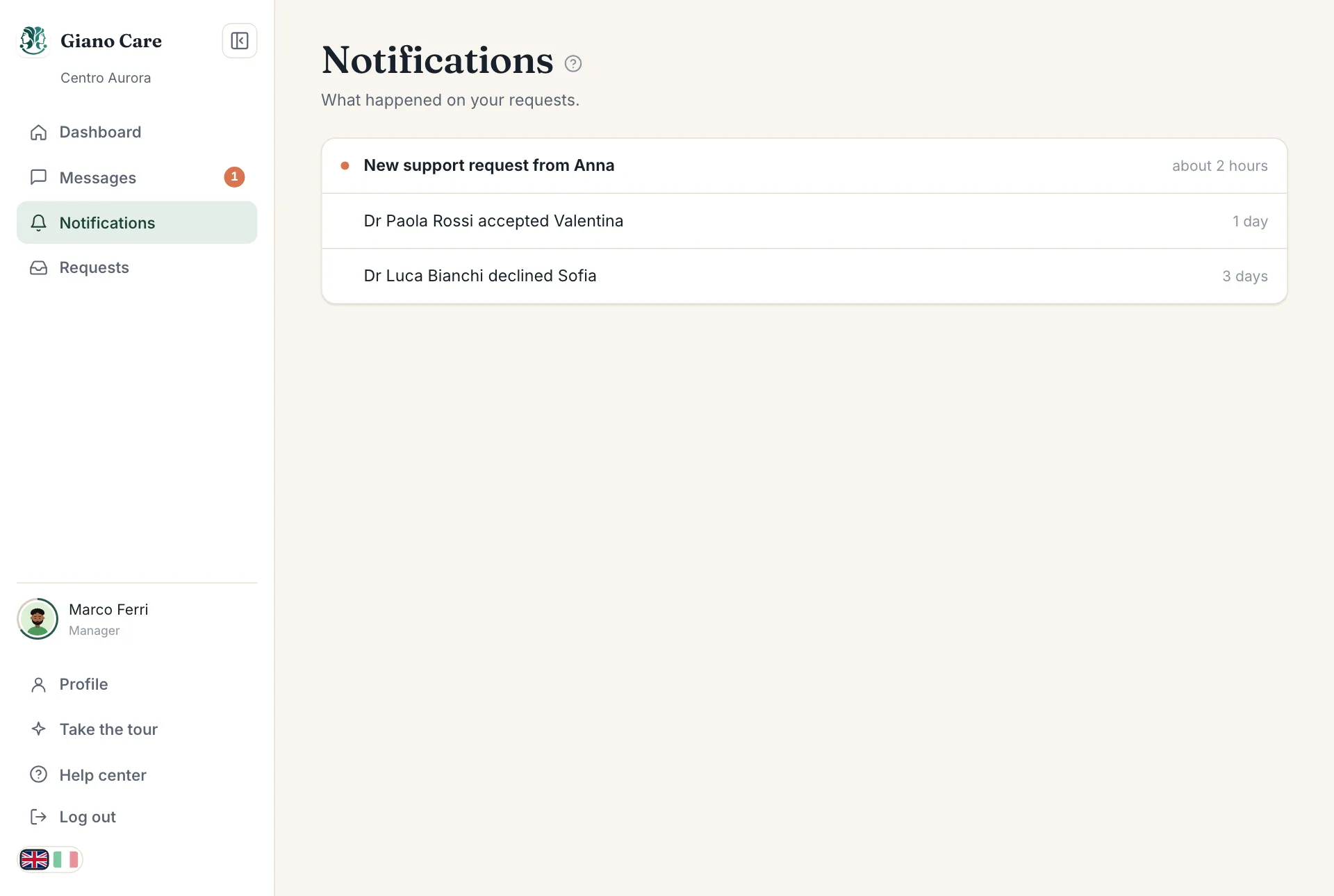
Notifications, in the side menu, lists what happened on your requests, newest first, with a counter for the ones you haven’t seen:
- managers: a new request arrived, a professional accepted or declined;
- professionals: you were assigned someone, or a request was reassigned or cancelled.
Click a notification to open the request.
Turn on Email me about requests in your profile to get the same notifications by email, and Email me about messages for messages (sent only if still unread after five minutes). Emails carry a first name and a link, never the person’s answers.
On your phone or computer
Giano Care can show a notification on your device, even when it is closed:
- Open your profile on the device you want notified.
- Under Phone notifications, choose Turn on for this device and allow notifications when the browser asks.
Do it once on each device. Notifications say who wrote or what happened, never the message text.
iPhone and iPad: first add Giano Care to your home screen (Share → Add to Home Screen), open it from the new icon, and switch notifications on from there.
If your browser says notifications are blocked, allow them for giano.care in the browser’s site settings and reload the page.
If your organization has the WhatsApp add-on, you can also receive assignment updates on WhatsApp. Enter your mobile number in your profile and tick the consent box. You can switch it off at any time.