 Giano Care
Your intake form
Choose the questions people answer when they ask for help, their order and how answers appear.
For owners
The intake form is the page people fill in to ask for support. You decide what it asks. Open Intake form in the side menu.
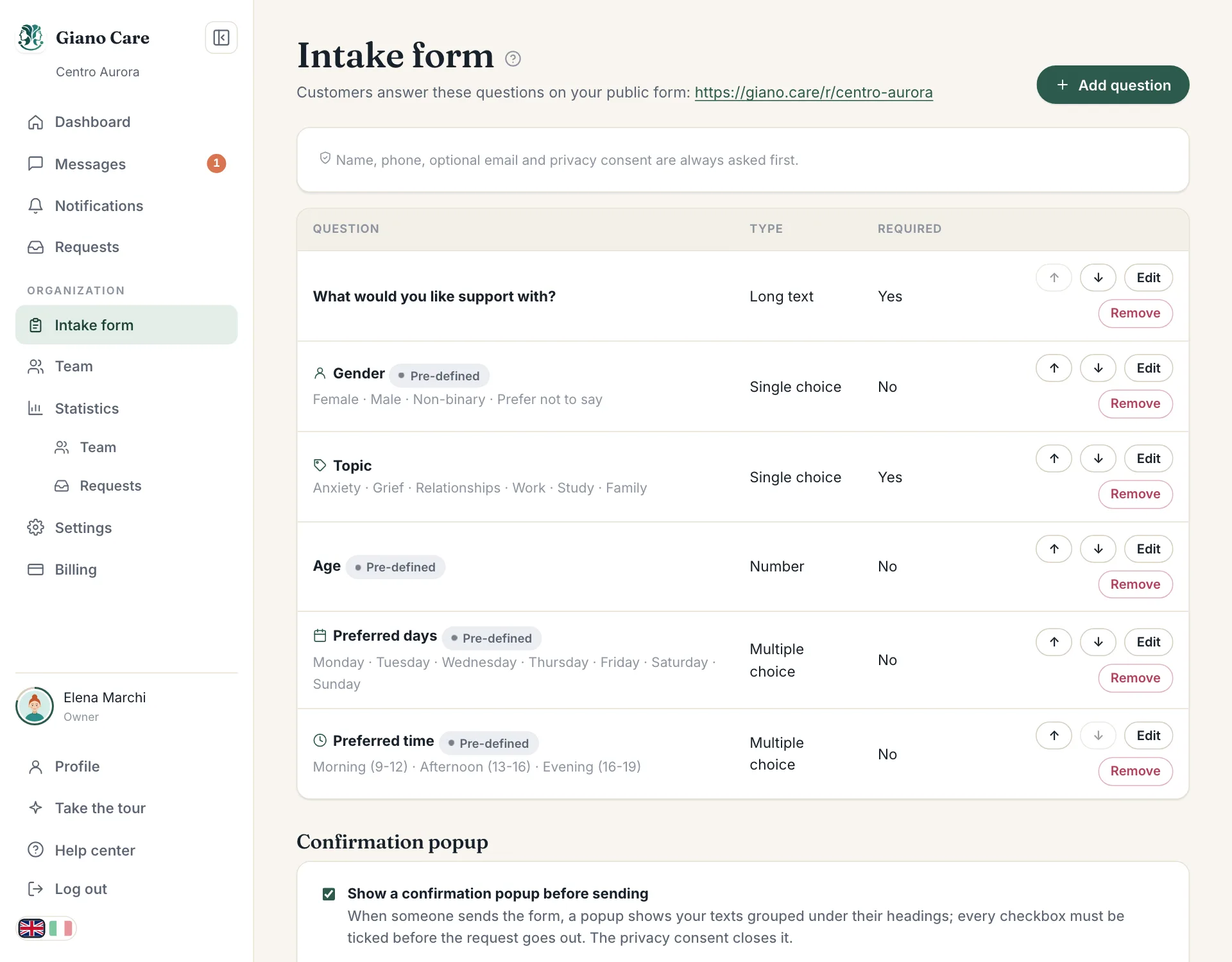
What is always asked
Name, phone, optional email and privacy consent are always asked first. You can’t remove them: Giano Care needs them to create the request and to call the person back. Your questions come after them.
Pre-defined fields
Four common questions are ready to use, marked Pre-defined: gender, age, preferred days and preferred time. Their wording and choices are fixed and translated for each reader, so an Italian and an English speaker both read them in their own language, and they feed the statistics consistently.
Don’t need one? Press Remove: it moves to Available pre-defined fields below the list, and Add back returns it to the form.
Add a question
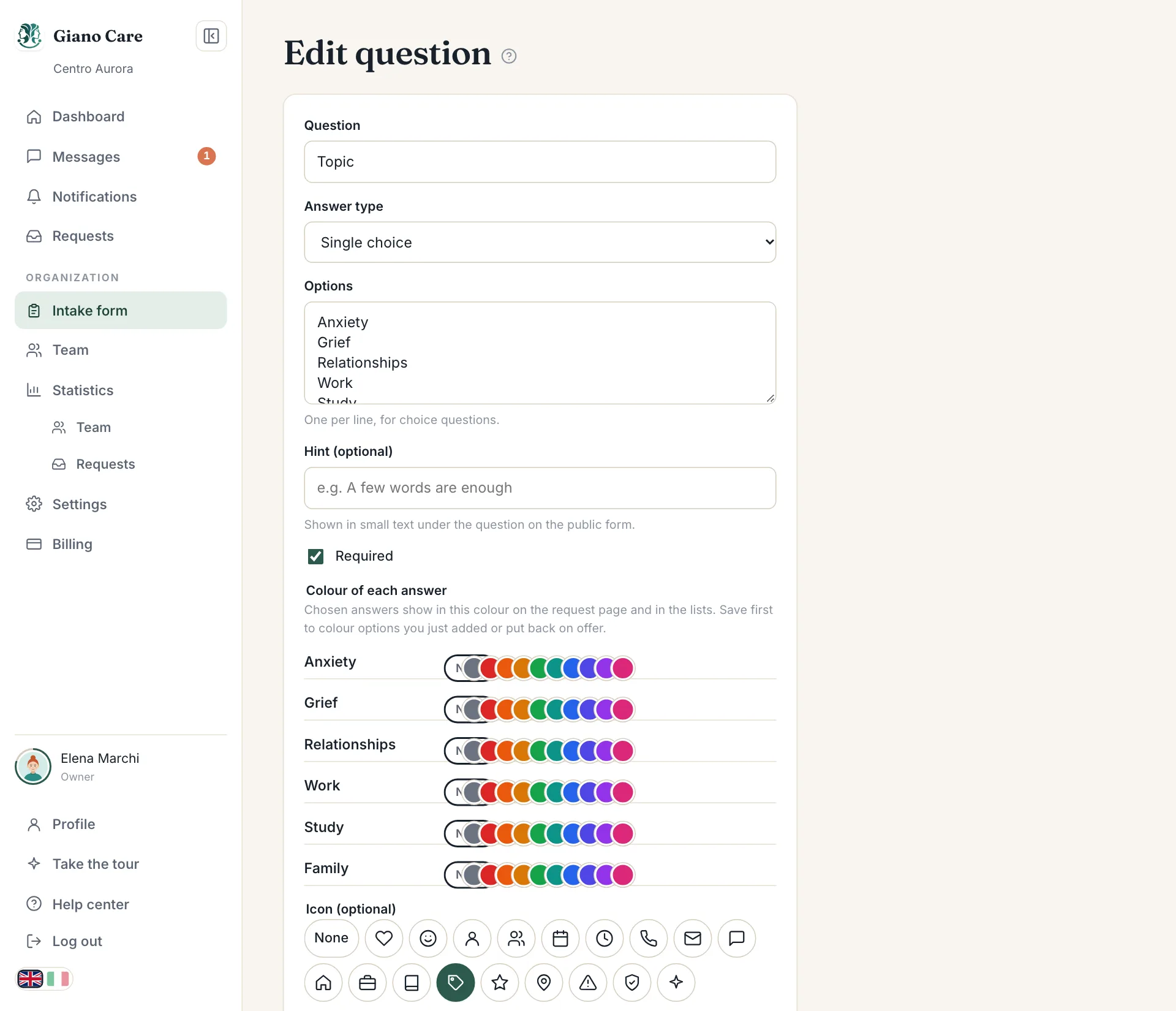
Press Add question, then fill in:
- Question: the text people read.
- Answer type: Short text, Long text, Number, Single choice, Multiple choice or Yes / no.
- Options: for choice questions, one per line.
- Hint (optional): shown in small text under the question, e.g. “A few words are enough”.
- Accepted range (optional): for numbers, a minimum and maximum, e.g. 18 to 99 for an age. Answers outside it are refused.
- Icon (optional): shown next to the question on the request page.
- Required: people can’t send the form without answering.
Press Save. The question is live on your form at once.
Order, edit and remove
Use the arrows (Move up, Move down) to change the order. Edit changes a question; Remove takes it off the form. Requests already received keep the question and its answer, so nothing in the past is lost.
Colour the answers
For choice questions, Colour of each answer gives every option a colour. Chosen answers then show in that colour on the request page and in the lists, so, for example, an urgent topic stands out. Save first to colour options you just added.
Show an answer in the lists
Show the answer under the requester’s name, in the request lists, to lets chosen roles see an answer without opening the request, such as the topic. Leave all unticked to keep it on the request page only. For gender you can also choose how it shows under the name.
Preferred days
For preferred days, untick the days you don’t offer: they disappear from the public form. Set as first chooses which day the week starts with.
Before people send it
You can add a confirmation step with texts people must tick before sending, such as “This is not an emergency service”. See The confirmation popup.
Keep the form short. Every extra question is one more reason to give up; ask only what you need to route the request.