 Giano Care
Team statistics
How each professional and manager is doing, by period, as tables or charts, and how to download it.
For owners
Statistics → Team shows how each member of the team is doing. Only owners see it.
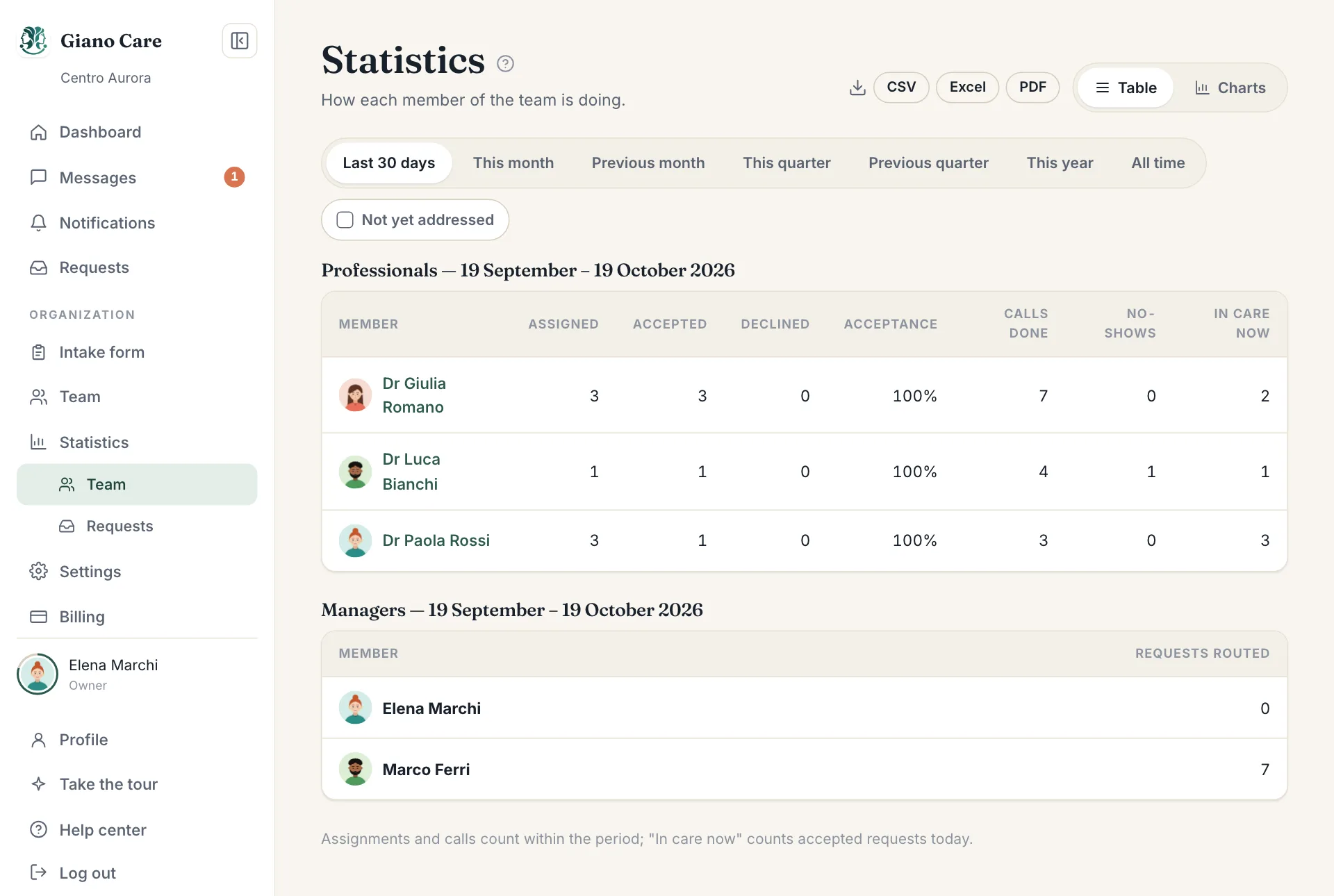
Choose a period
Pick Last 30 days, This month, Previous month, This quarter, Previous quarter, This year or All time. Assignments and calls count within the period; In care now always counts today.
Tick Not yet addressed to look only at requests where no call has been held yet: a quick way to spot people still waiting.
What the columns mean
For professionals:
| Column | Meaning |
|---|---|
| Assigned | Requests assigned to them in the period. |
| Accepted / Declined | How they answered those assignments. |
| Acceptance | Accepted out of answered, as a percentage. |
| Calls done | Calls marked done in the period. |
| No-shows | Calls marked as no show in the period. |
| In care now | Requests they have accepted and not yet closed, today. |
For managers, Requests routed counts the assignments they made.
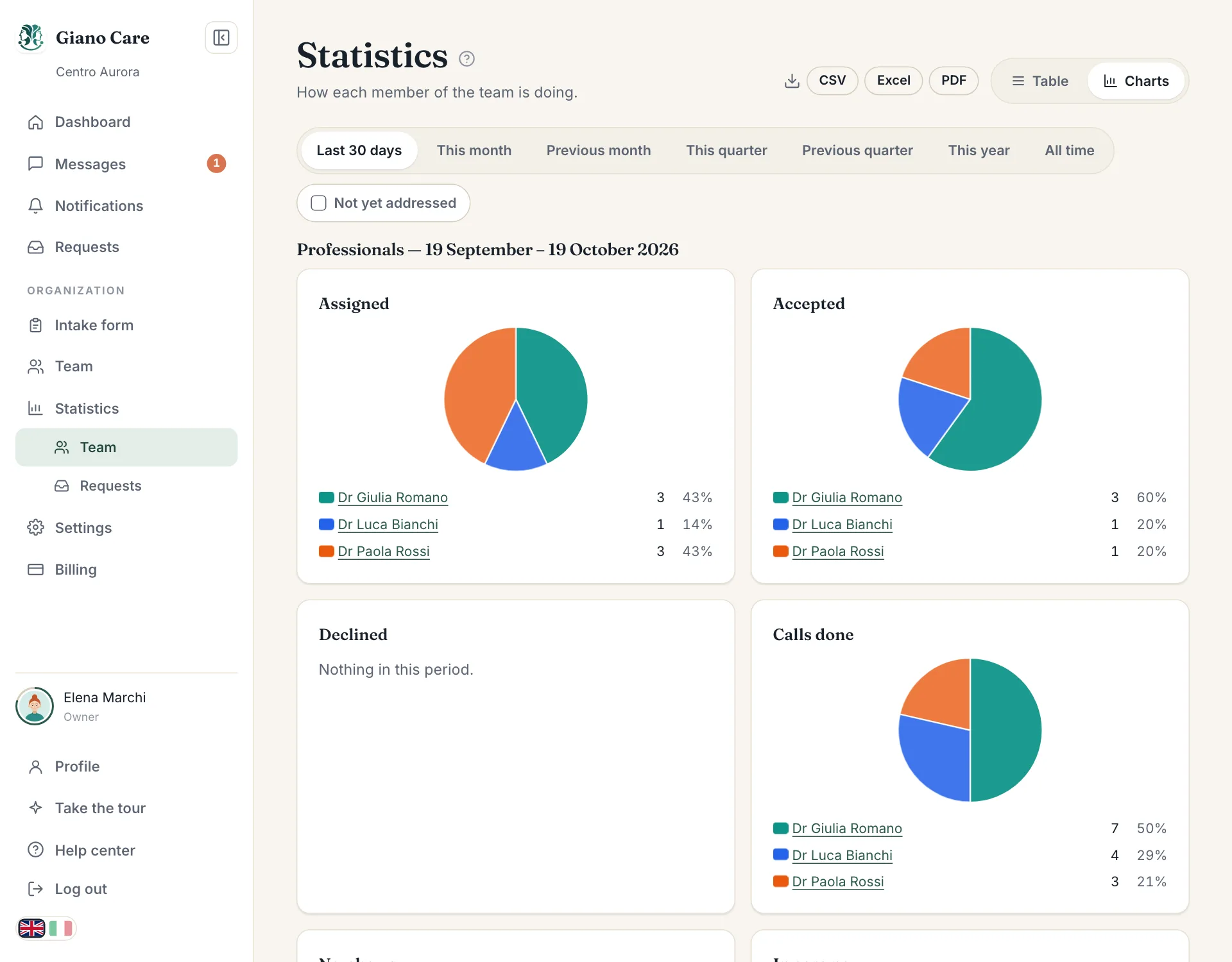
Charts
Switch View to Charts to see the same figures as charts, which makes differences across the team easier to read.
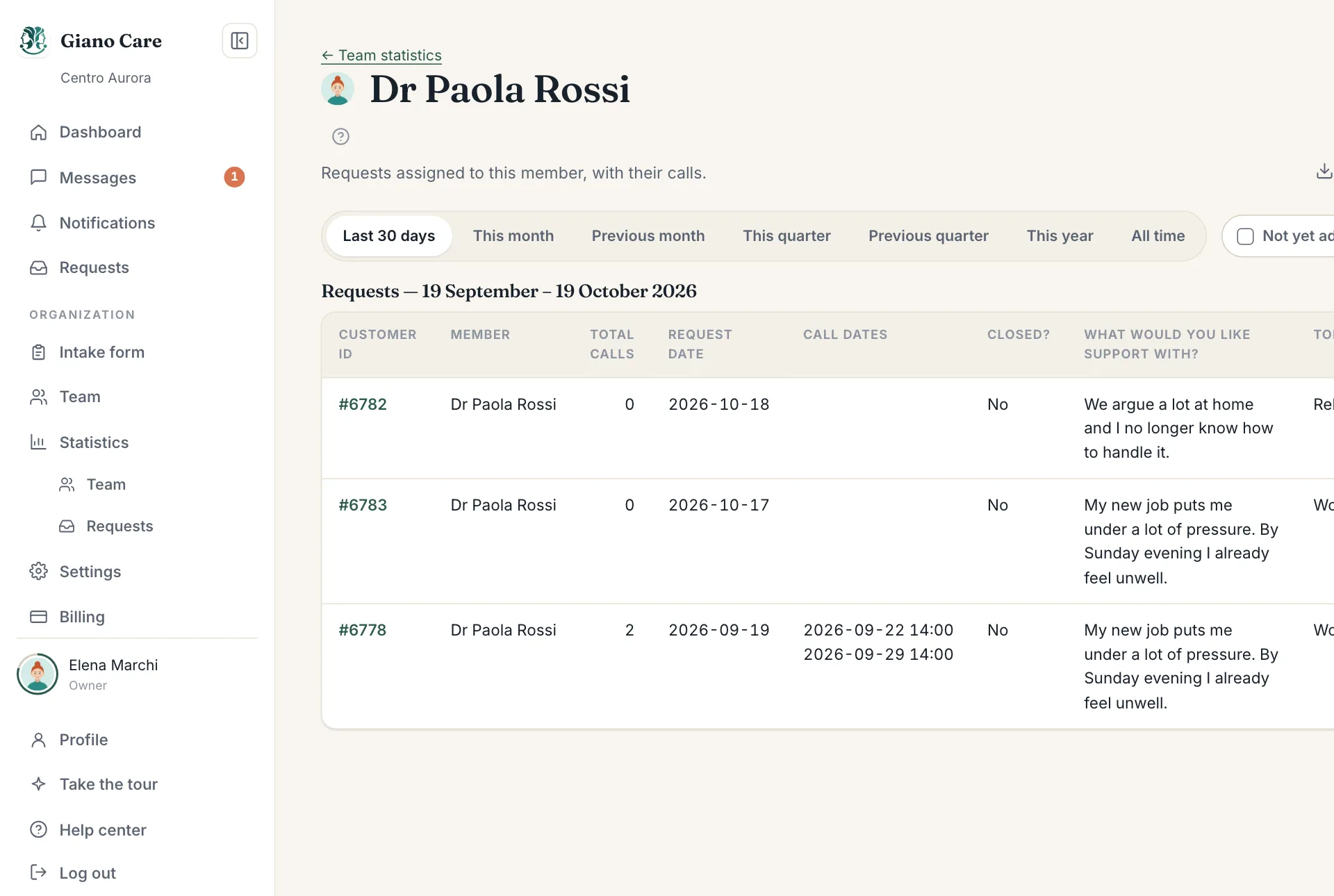
One member in detail
Click a member’s name to see every request assigned to them in the period: customer ID, request date, total calls, the dates of each call and whether it is closed.
Download
CSV, Excel and PDF download what is on screen, for the chosen period. The PDF carries your logo and brand colour (set in Settings), the date it was made and page numbers, ready to send to a board or a funder.
Downloads contain customer IDs, not names. Still, treat them as confidential and keep them only as long as you need them.