 Giano Care
Sign in, switch workspace and change language
Creating your account, signing in, resetting your password and moving between organizations.
Create your account
There are two ways in:
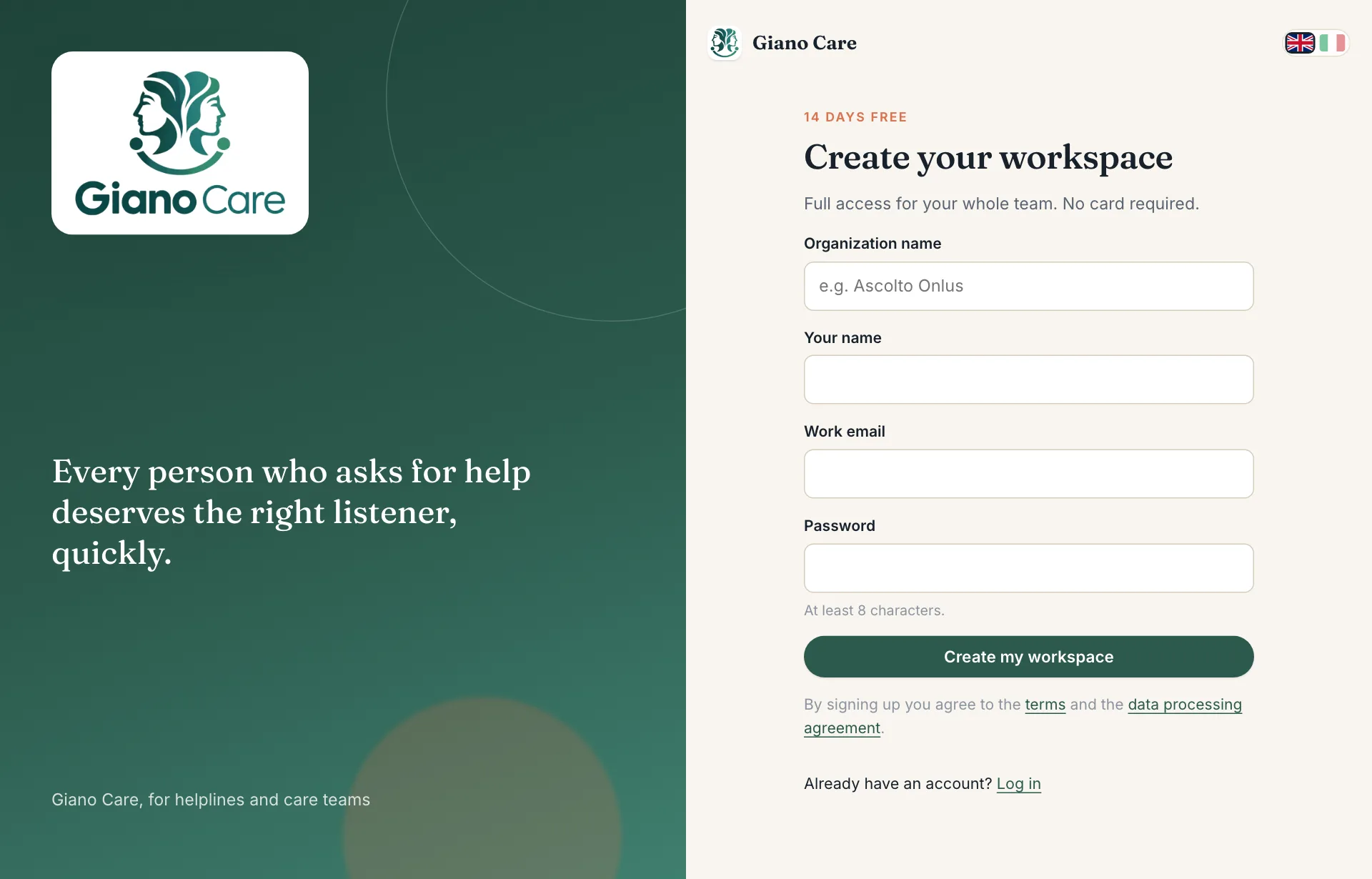
- You are starting a new organization. Choose Start free trial on giano.care, enter your organization’s name, your name, your work email and a password of at least 8 characters. We send you a confirmation link: click it to open your workspace.
- A colleague invited you. You receive an email from Giano Care. Follow its link to choose your password; you are then signed in to their organization with the role they chose.
Sign in
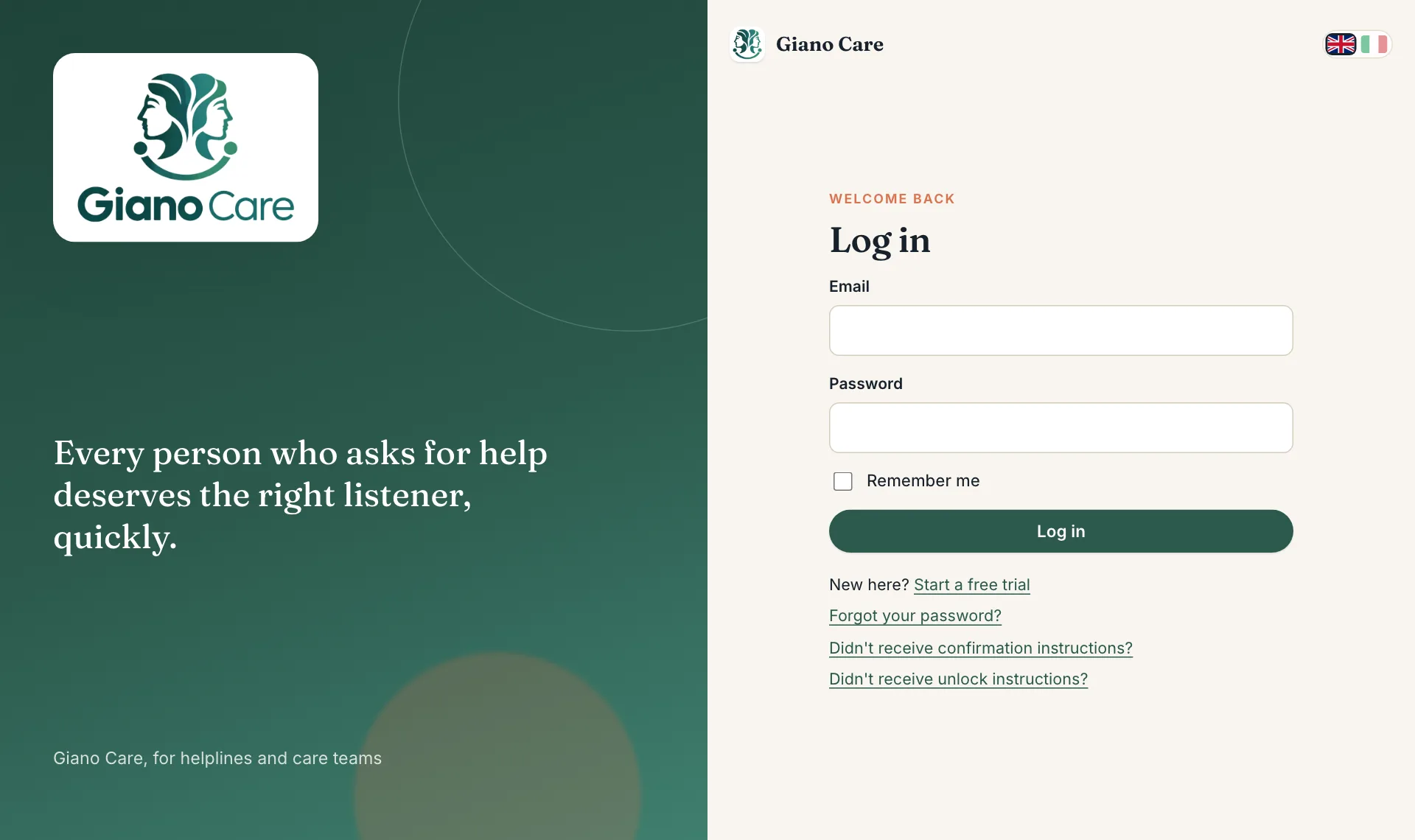
Go to giano.care and choose Log in, then enter your email and password. If you turned on two-factor sign-in, Giano Care then asks for the 6-digit code from your authenticator app.
Forgot your password?
Choose Forgot your password? on the sign-in page and enter your email. You receive a link to choose a new one.
Account locked
After too many wrong passwords in a row, your account is locked for your protection. You receive an email with an unlock link, or you can wait an hour and try again.
Switch workspace
If you belong to more than one organization, Giano Care asks which one to open after you sign in. Later, click your organization’s name at the top of the side menu: the list of your other organizations opens under it, and choosing one switches to it. Your email and password are the same everywhere; your role, notifications and profile picture can differ in each organization.
Change language
Giano Care speaks English and Italian. Use the flags at the bottom of the side menu (or at the top of the public pages). Your choice is remembered for your account on every device.
The language of emails and WhatsApp messages to people who never chose one follows the organization language set by the owner in Settings.