 Giano Care
Route a request
Assign a request to a professional, follow what happens next, reassign or cancel it.
For owners and managers
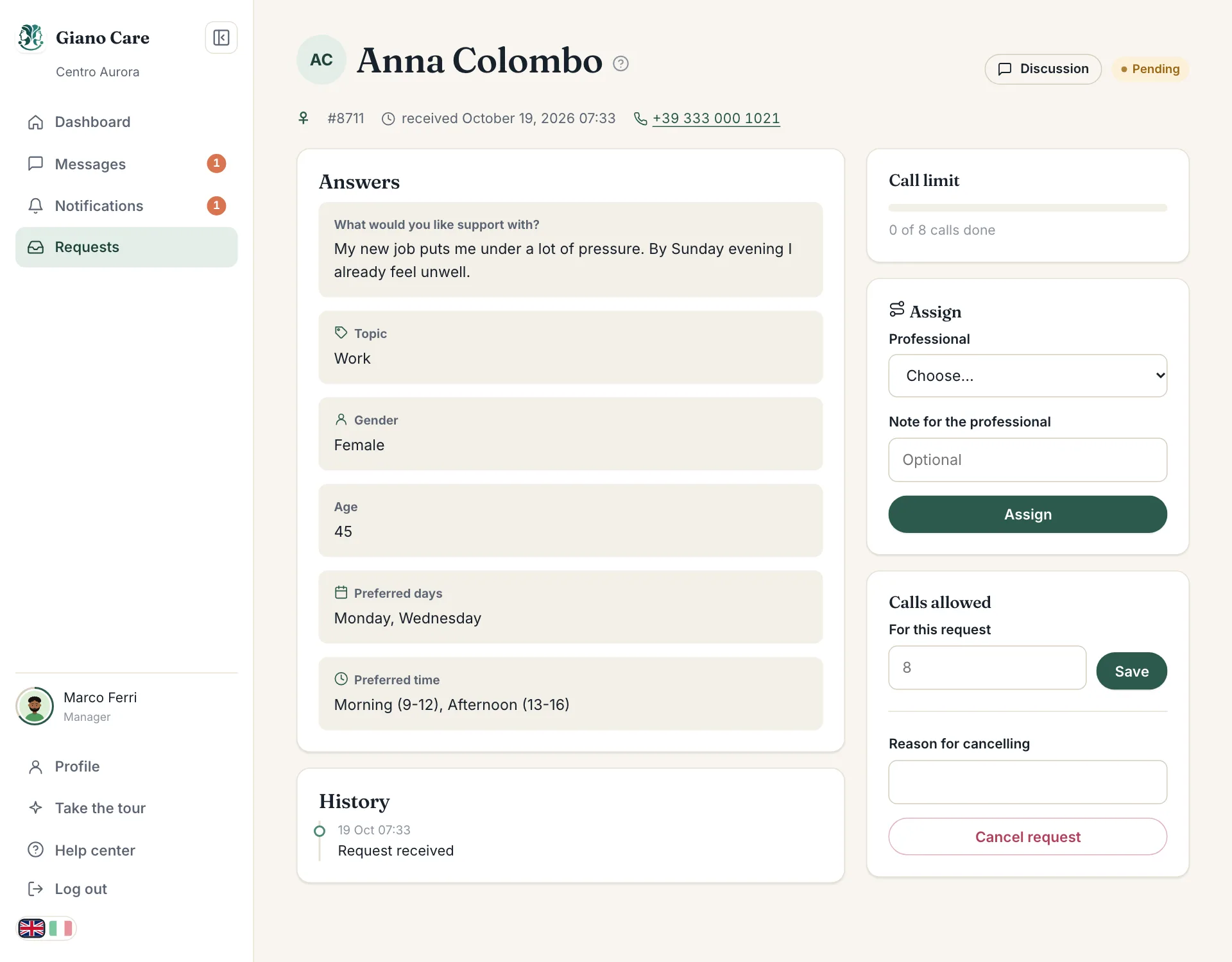
Routing means choosing who will look after a person. Open a request from the Pending tab to see everything they wrote and the routing panel on the right.
Read the request
At the top you see the person’s name, the request number, when it was received and their phone number (click it to call from a phone). Below, Answers shows each answer to your intake form, with its icon and colour.
Assign it
- Under Assign, choose a Professional. Only active professionals appear: disabled members don’t.
- Optionally write a Note for the professional, for example “prefers evening calls”. It travels with the assignment and stays in the history.
- Press Assign.
The request moves to Routed with the status Assigned, and the professional is notified in the app, by email and, if your organization uses it, on WhatsApp.
What happens next
The professional opens the request and either:
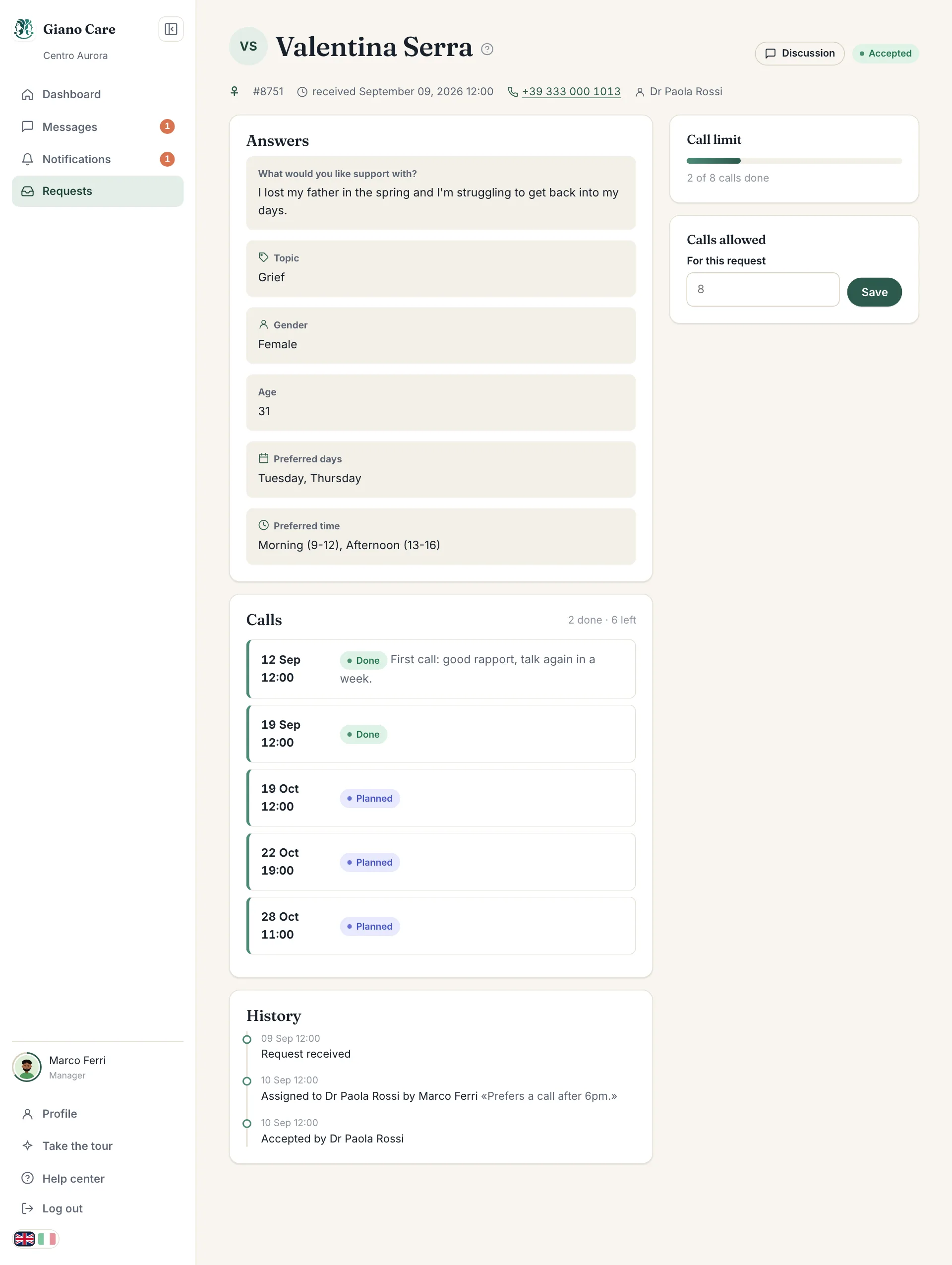
- accepts it: the status becomes Accepted and they can start booking calls; or
- declines it, optionally with a reason: the request goes back to Pending.
Either way you get a notification. The History card on the request records every step: who assigned it, who accepted or declined, and why.
Reassign
While a request is still Assigned, choose another professional and press Reassign. Both professionals are told. Once accepted, the professional has to decline it before it can go to someone else.
Change the call limit for this request
The Calls allowed card sets how many calls this person can have. It starts from your organization’s limit; raise or lower it for this request only, or empty it for unlimited calls. See Call limits.
Cancel a request
If a request should not be followed up (a duplicate, a test, or the person found help elsewhere), write a Reason for cancelling and press Cancel request. You can cancel pending and assigned requests; an accepted one is closed instead, by you or by the professional.
Discuss it with the professional
Discussion, at the top of the request, opens a conversation attached to this request. Only managers and the assigned professional can read it. See Messages.