 Giano Care
The requests list
Where every request from your intake form lands, and how to find the one you need.
For owners and managers
Every time someone sends your intake form, a new request appears under Requests in the side menu, and every manager gets a notification. The list is split into tabs so the work in front of you stays short.
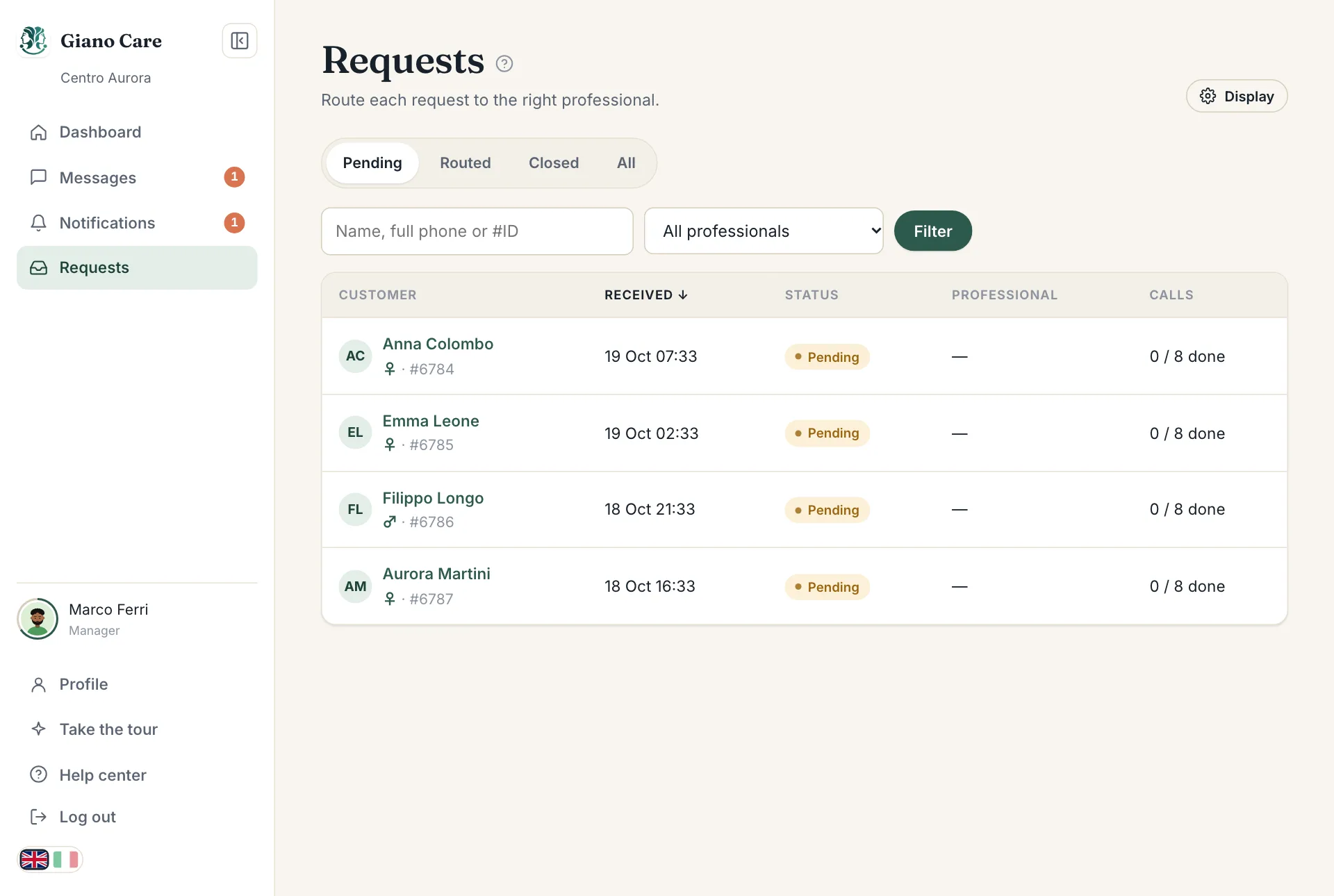
The tabs
- Pending: new requests, and requests a professional declined. This is your to-do list.
- Routed: requests assigned to a professional, waiting for their answer or already accepted.
- Closed: requests whose calls are over, and cancelled ones.
- All: everything, whatever the status.
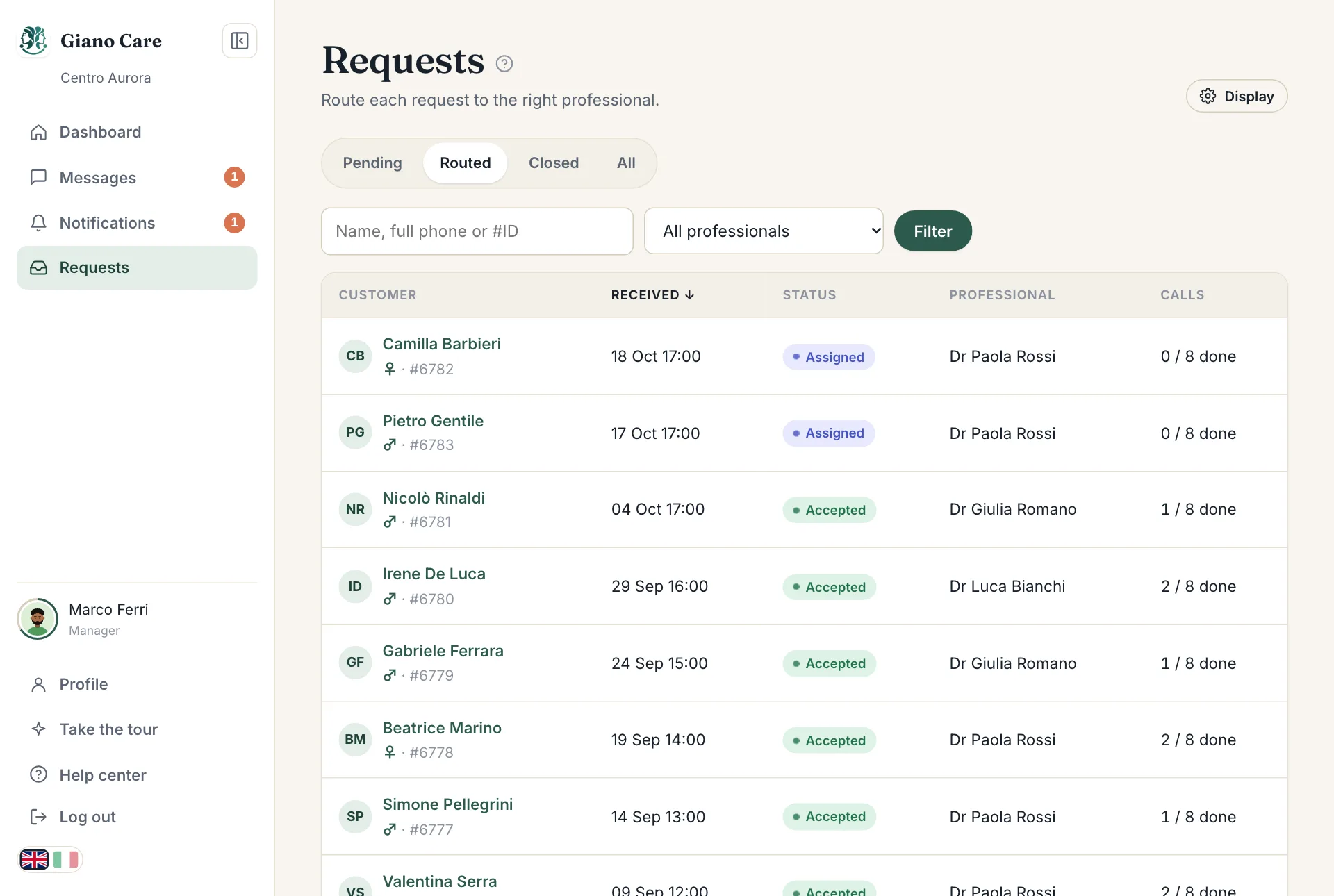
What each row shows
- Customer: the person’s name (or initials, or ID: see How customers are shown) and, below it, their ID or phone number. Some answers, like gender, can show here too if the owner chose so in the intake form.
- Received: when the form was sent.
- Status: pending, assigned, accepted, closed or cancelled.
- Professional: who the request is assigned to.
- Calls: calls done so far, out of the call limit if there is one.
Click a column title to sort by it, and click a row to open the request.
Find a request
Type in the search box to look for:
- a name, or part of it;
- a full phone number;
- a request number, such as
#8615.
Use All professionals to see only the requests of one professional, then press Filter.
When the list is empty
Requests arrive only from your intake form. If nothing has come in yet, open your form from the dashboard and send yourself a test request, or check that the link is on your website. See Share your form.
The dashboard counts Pending requests and Routed requests and lists the latest open ones, so you can see at a glance whether anything is waiting.