 Giano Care
Set up your organization
From sign-up to your first routed request in about five minutes.
For owners
When you create your workspace you get a 14-day free trial of the whole product, with no card needed. Your dashboard shows a Getting started card that ticks itself off as you go.
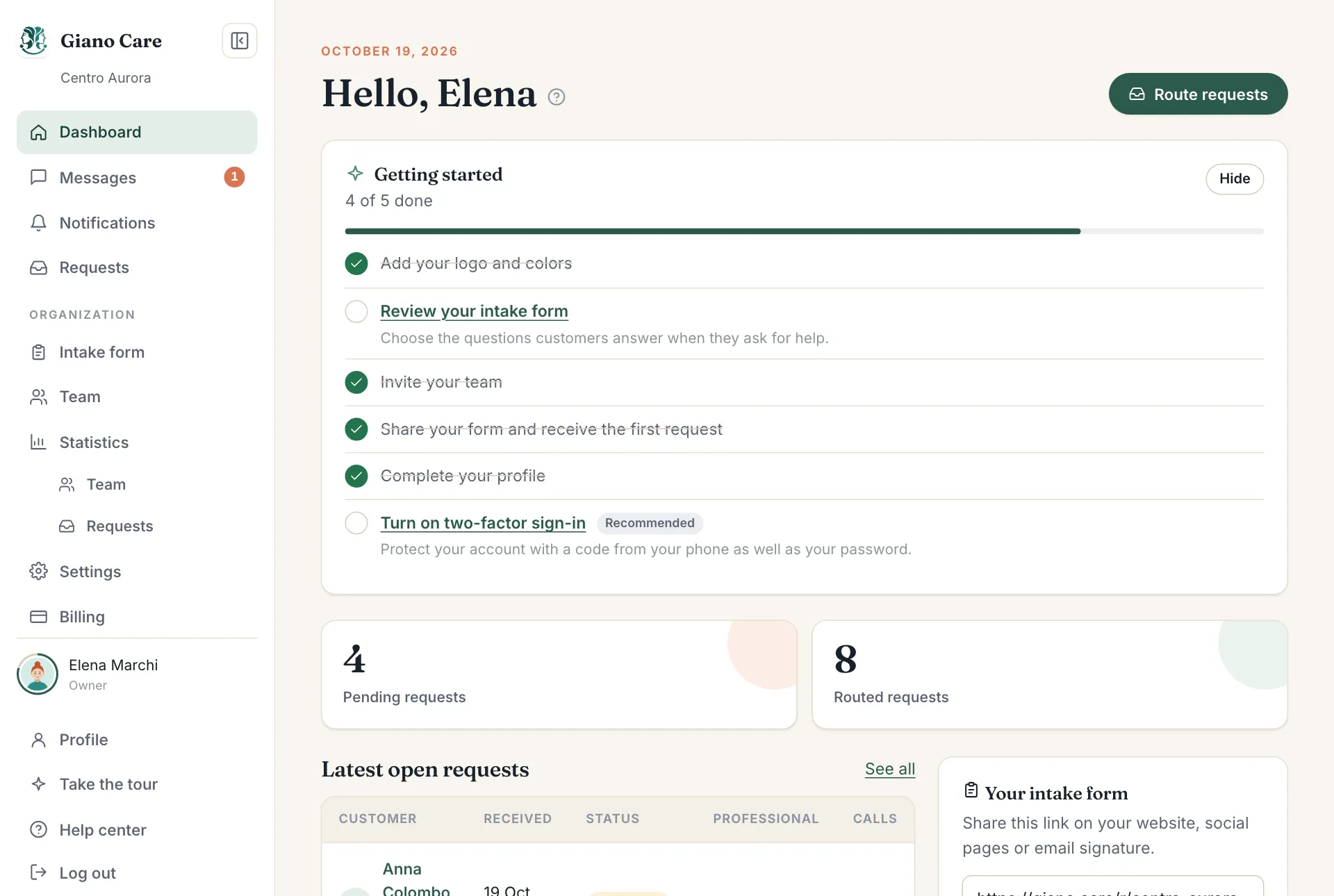
1. Add your logo and colours
Open Settings and add your logo and, if you like, a brand colour. Your public form, the side menu and your PDF reports will look like your organization. See Organization settings.
2. Review your intake form
Open Intake form. A first question (“What would you like support with?”) and four pre-defined fields (gender, age, preferred days and preferred time) are already there. Add, remove or reorder questions until the form asks what you need. See Your intake form.
3. Invite your team
Open Team and choose Invite someone. Give each person a role: managers route requests, professionals look after the people assigned to them. They receive an email to set their password. See Team.
4. Share your form
Your form has its own address, shown on the dashboard under Your intake form. Put it on your website, your social pages or your email signature. When someone fills it in, the request appears under Requests. See Share your form.
5. Route your first request
Open the request, choose a professional and press Assign. The professional is notified at once. See Route a request.
The welcome tour
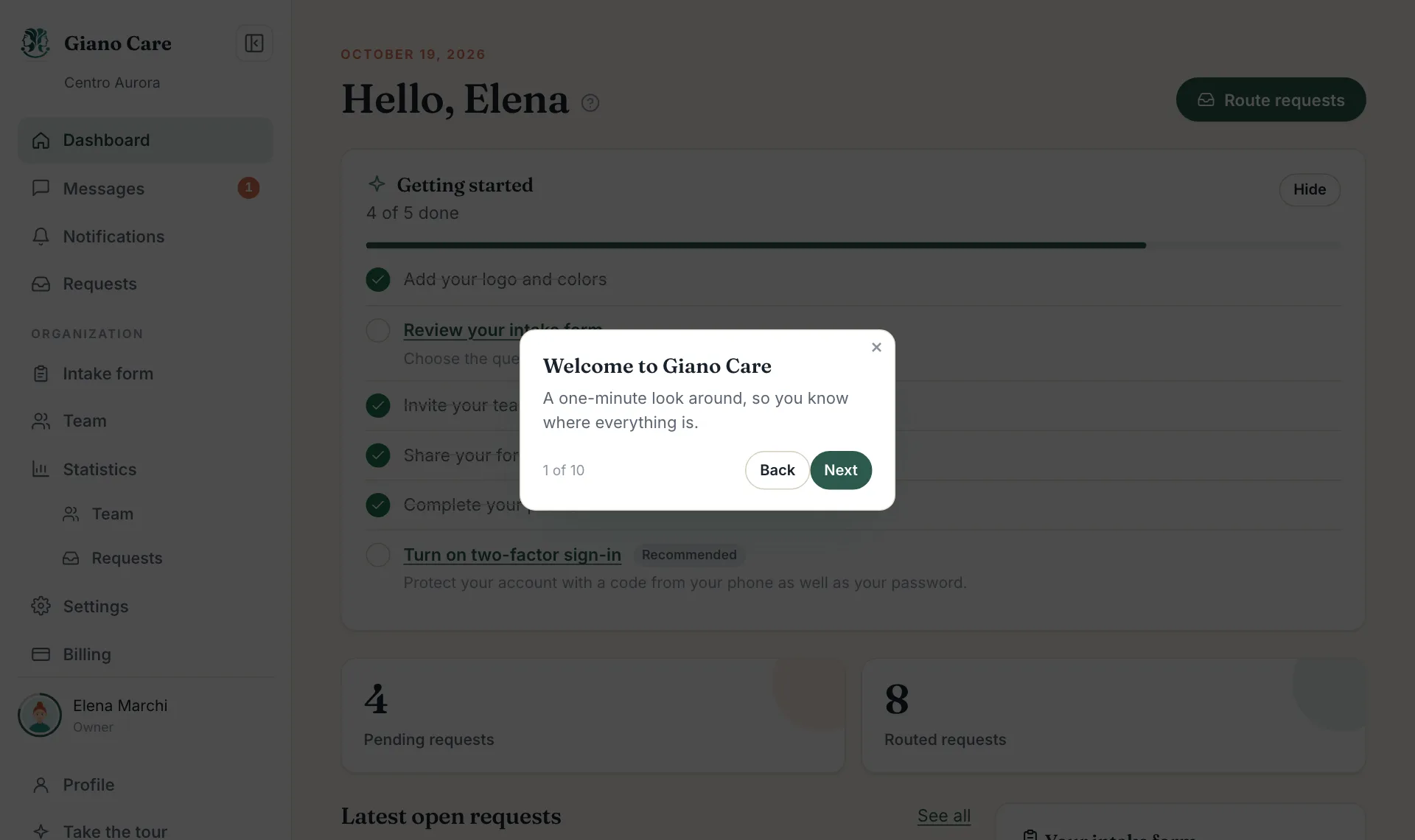
The first time you open Giano Care, a short tour points out each part of the side menu. You can close it at any time and take it again from Take the tour at the bottom of the menu.
The checklist also lives on your profile page, with a percentage, so hiding the card from the dashboard loses nothing. The ring around your picture fills up as you finish.
Before the trial ends
The trial lasts 14 days. You will get a reminder email a few days before the end. Choose a plan from Billing to carry on without interruption; see Plans and billing.